What Is NotebookLM? Google’s AI Research Assistant Explained
NotebookLM is Google’s AI research assistant, and it works in the opposite way to the chatbots you already know. Instead of answering from the open web, it answers only from the documents you give it, and it shows you the exact passage behind every answer. You upload your PDFs, notes, web pages, or videos, and the tool becomes a specialist in that material alone.
This guide explains what NotebookLM is, how it works, and what each of its main functions does. It also covers the tool’s new name, because Google renamed NotebookLM to Gemini Notebook in July 2026, and it sets out honestly what the free version includes and what changes if you pay.
NotebookLM at a glance
| Detail | Fact |
|---|---|
| Maker | |
| What it is | An AI research and note taking assistant that answers from your own sources |
| Current name | Gemini Notebook (renamed from NotebookLM in July 2026) |
| Cost | Free with a Google account; higher limits come through Google AI plans |
| Platforms | Web at notebook.google.com, plus Android and iOS apps |
| Best for | Studying, research, and understanding long or difficult documents |
First, a name change: NotebookLM is now Gemini Notebook
If you open the tool today and see the name Gemini Notebook, you are in the right place. In Google’s announcement of July 16, 2026, the company renamed NotebookLM to Gemini Notebook and described it as the same standalone product with a new name. Your existing notebooks and shared links carried over, and the old address now forwards to notebook.google.com.
Google said at the time that more than 30 million people and over 600,000 organizations were using the tool, which explains why the old name has not gone away. Most people still search for NotebookLM, and this guide uses that name for the same reason, with the new name flagged wherever it matters. The core product is unchanged: a notebook, your sources, and answers you can check.
How NotebookLM works: answers that stay inside your sources
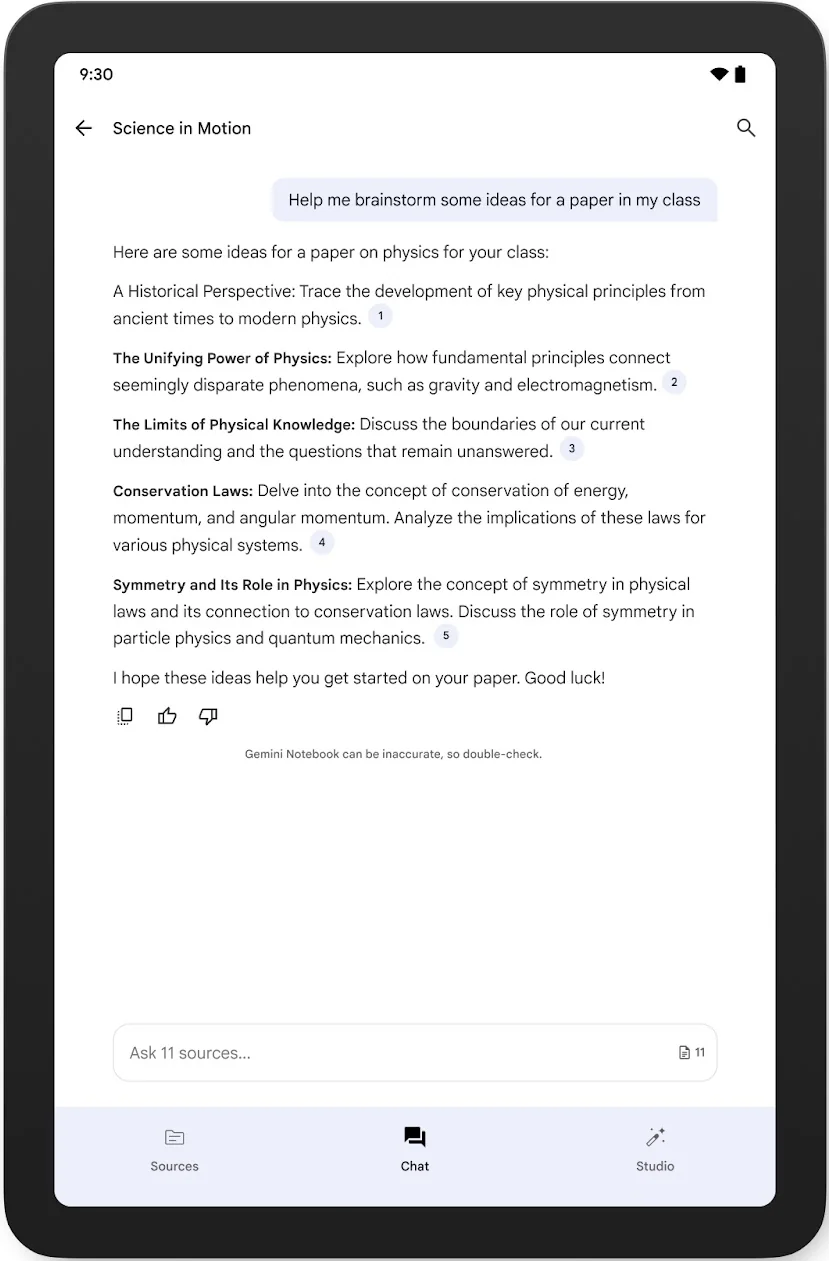
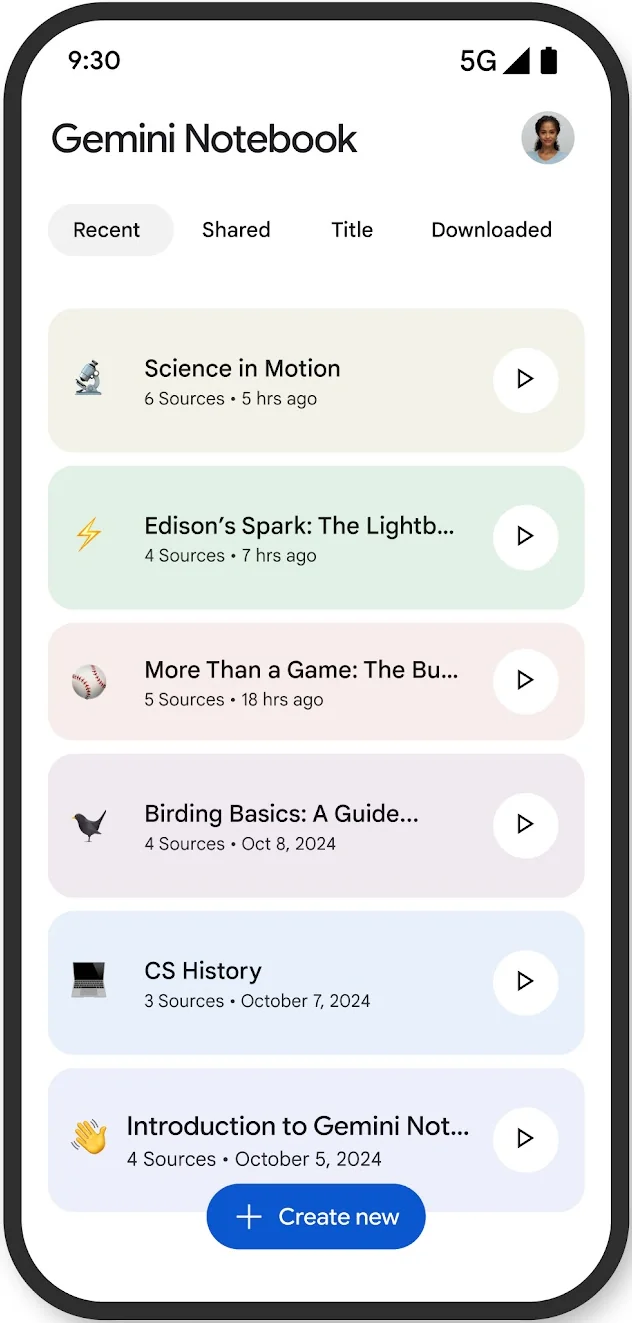
A notebook is a workspace for one topic, one course, one project, or one set of documents. Inside it, the screen is divided into three parts. The Sources panel holds everything you have added. The Chat panel is where you ask questions. The Studio panel is where you turn those same sources into audio, video, documents, and study tools.
The rule that defines the whole product is simple. Chat answers are built only from the sources inside that notebook. If the answer is not in your sources, NotebookLM should tell you so rather than invent one. Every answer carries small numbered citations, and clicking a citation opens the exact passage it came from, so you can verify any claim in seconds.
This is the honest difference from a general chatbot such as ChatGPT. A general chatbot answers from its training and from the web, which makes it flexible but also able to state a wrong fact with total confidence. NotebookLM gives up that breadth on purpose. It knows less about the world and far more about your documents, and because it shows its working, it is much easier to trust. Grounding reduces invented facts. It does not remove mistakes entirely, which is why the citations are there.
Each notebook also stands completely alone, and NotebookLM cannot look across several notebooks at once. The practical habit is one notebook per project, with a name you will recognize months later.
What you can add: sources explained
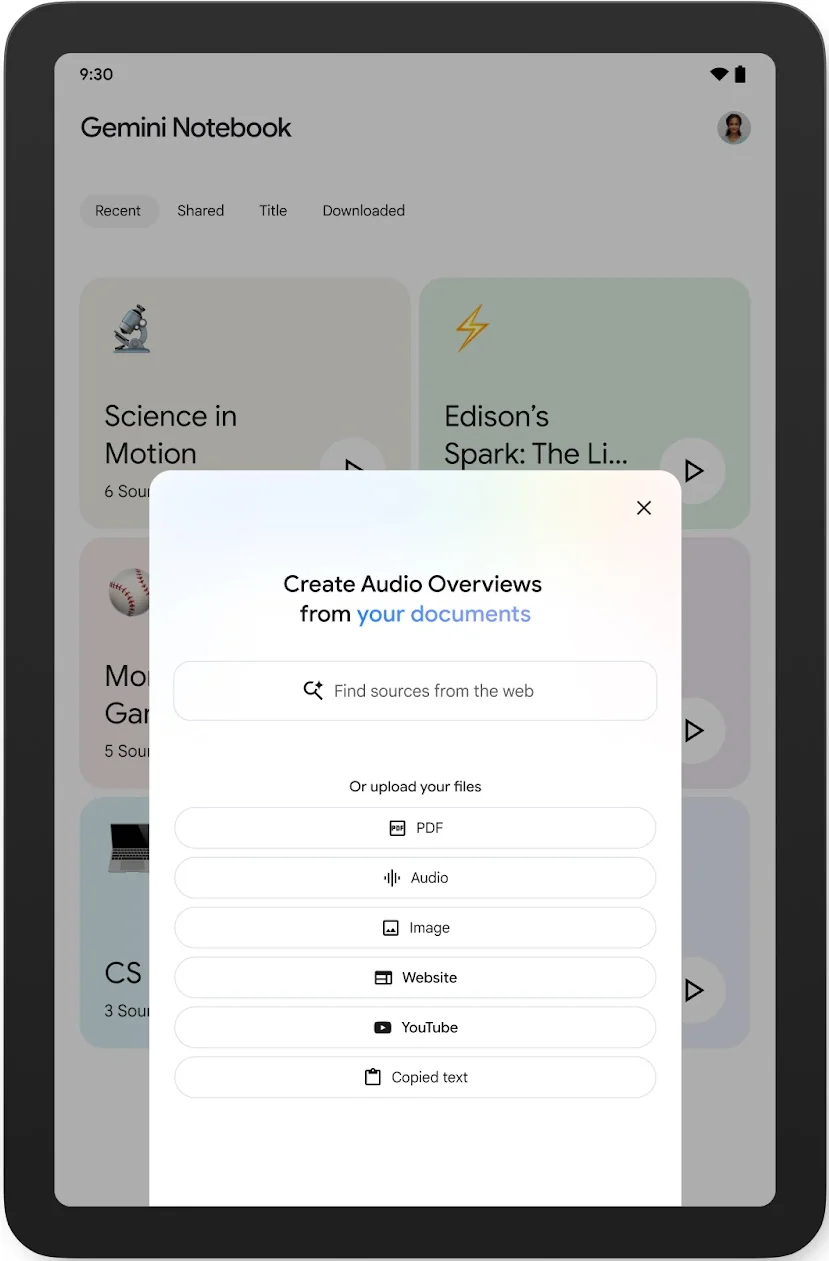
Everything in NotebookLM starts with sources. A source is any document or media file you add to a notebook for the AI to read. The tool accepts a wide range of material:
- Files you upload, including PDF, Word, PowerPoint, plain text, Markdown, CSV, and ePub files
- Google Docs, Google Slides, and Google Sheets from your Drive
- Web pages, added by pasting a link
- Public YouTube videos, which are read through their captions
- Audio files, such as lecture or meeting recordings, which are transcribed when you add them
- Images, copied text you paste in directly, ebooks from Google Play Books, and even your Gemini chats
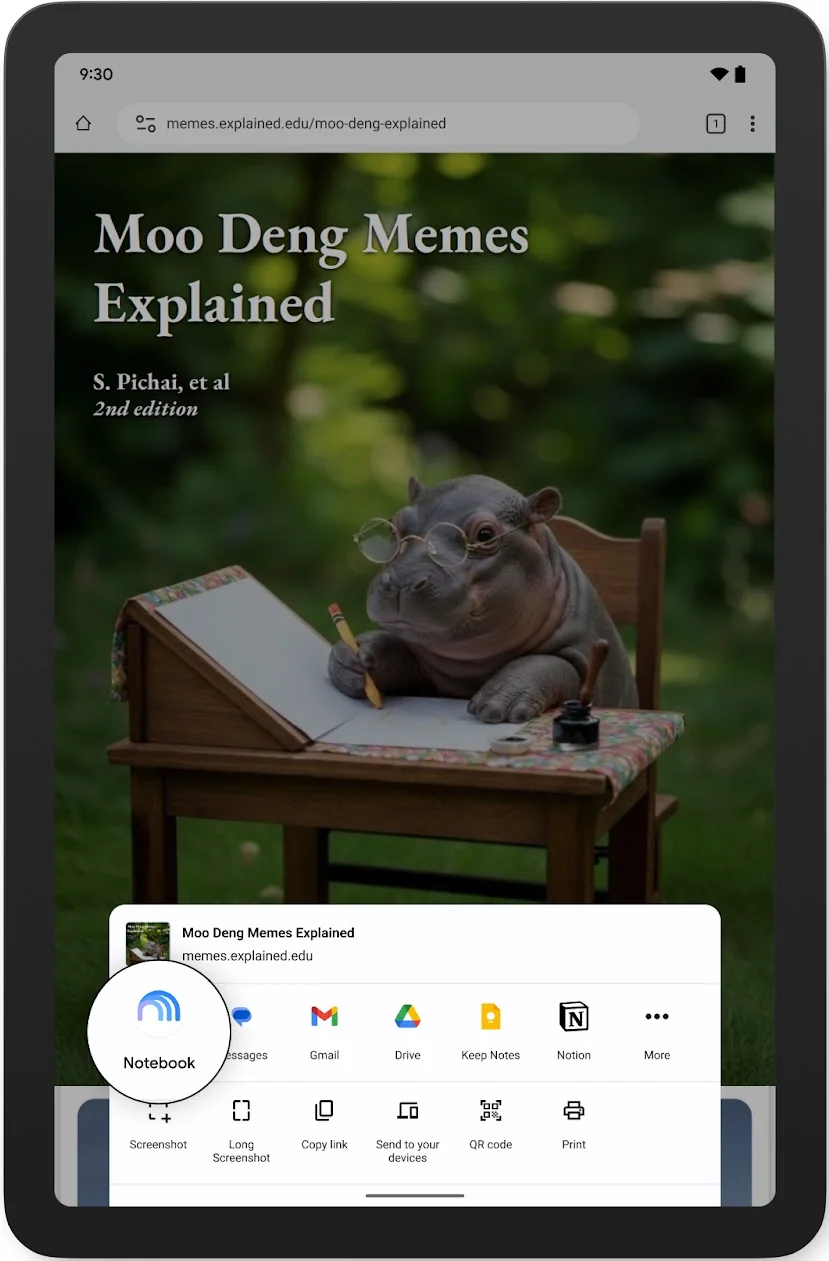
On the free plan, a notebook holds up to 50 sources. Each single source can contain up to 500,000 words, and an uploaded file can be as large as 200 MB, with no limit on page count. A few import rules are worth knowing. A web page is imported as text only, so pictures on the page are left behind, and pages behind a paywall are not supported. A YouTube video must be public and must have captions, and only the transcript is read. Files from Google Drive stay in sync, so an edited document updates in your notebook as well. On your phone, you can also send documents into a notebook from other apps through the share menu.
The main functions, defined
The chat and the Studio panel together give NotebookLM nine main functions. Each one below is explained in plain terms: what it is, what it produces, and when it is useful.
Chat with citations you can check
The chat is where you ask questions about your sources in ordinary language, such as what three arguments your sources agree on, or how a difficult concept can be explained more simply. The answer is written only from your sources, and the numbered citations let you jump to the passage behind any sentence. You can narrow a question to part of your material by unticking sources in the Sources panel before you ask. A settings menu called Configure Chat also lets you pick a style: Default for general research, Learning Guide for studying, or Custom, where you describe a role or a tone in your own words.
Notes that become part of your notebook
When an answer is worth keeping, you can save it as a note with one click. Notes live alongside your sources inside the notebook, and they are not dead text. The chat can cite your notes in later answers, and the Studio can build its outputs from them, so a good answer you saved last week becomes part of what the tool works from today. You can also write your own notes by hand, and the AI will use them in the same way.
Audio Overviews: your sources as a podcast
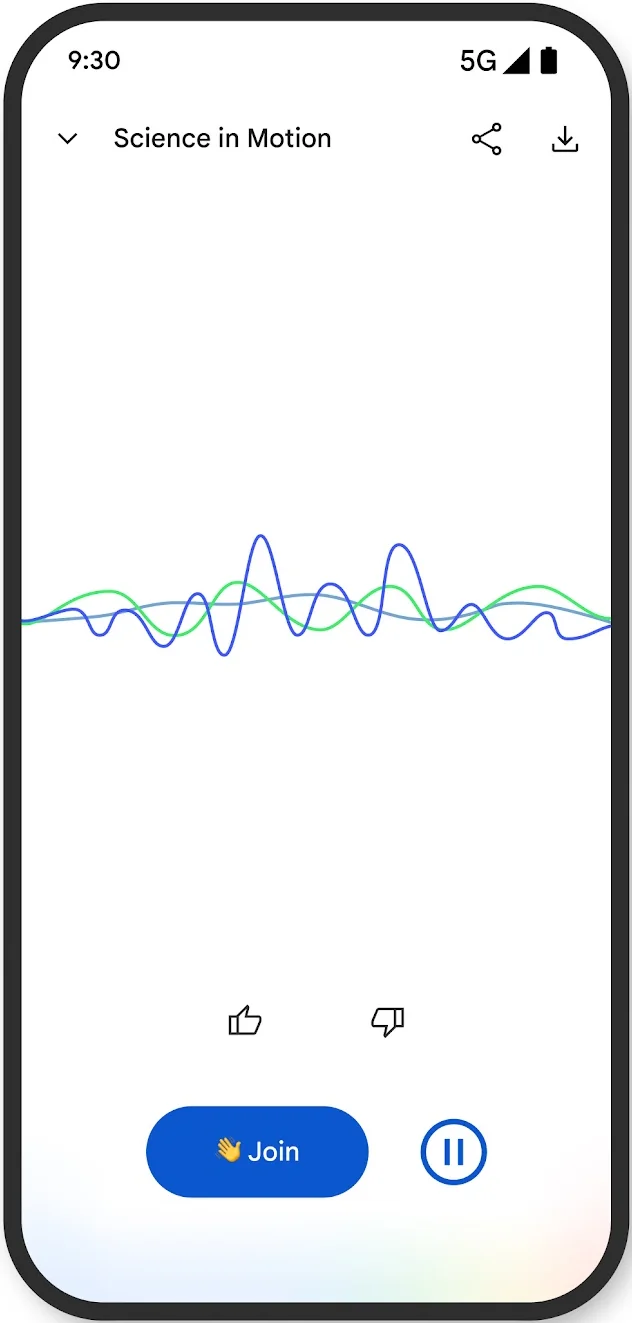
An Audio Overview turns your sources into a spoken conversation between two AI hosts, in the style of a podcast episode about your material. This is the feature that made NotebookLM famous, and it is genuinely useful when your eyes are busy, because a dense report becomes something you can absorb on a walk or a drive. You choose the format. Deep Dive is the standard two host discussion, Brief gives you one speaker covering the key points in under two minutes, Critique evaluates the material, and Debate has the hosts argue two sides. You can also set the language, pick a length, and tell the hosts what to focus on. With Interactive Mode, you can join the conversation and ask the hosts a question out loud, although that works in English only. In the mobile app, overviews can play in the background and can be downloaded for offline listening. One caution: the player shows no transcript, so if a spoken claim really matters, check it against the written source.
Video Overviews: your sources as a narrated video
A Video Overview does for watching what an Audio Overview does for listening. It builds a narrated video from your sources, pairing a spoken explanation with visuals such as images, diagrams, quotations, and figures drawn from the material itself. Explainer is the standard narrated walkthrough. Short compresses a topic into roughly a minute. Cinematic is the most polished version, and it sits on the paid plans with its own daily limits, because it can take more than half an hour to generate. Standard video is available on the free plan within its daily allowance.
Mind Maps
A Mind Map turns the topics inside your sources into a branching diagram, with the main themes in the middle and related ideas spreading outward. You can open any branch to see how the ideas connect, and clicking a topic lets you ask the chat about that exact point. It is the fastest way to get your bearings in documents you have not read yet, because the shape of the subject becomes visible before you read a page.
Reports: briefing documents, study guides, and more
Reports are written documents that the Studio generates from your sources. A Briefing Document condenses your material into the main points and key quotations. A Study Guide turns it into review questions and a glossary of key terms. There are also FAQ and Timeline formats, and you can describe a structure of your own and have a custom report built to it. Reports are the function to reach for when another person needs to understand your material without reading all of it.
Flashcards and quizzes
For learning, the Studio can turn your sources into flashcards and quizzes. You choose how many cards or questions you want and how difficult they should be. Quiz answers come with explanations drawn from your material, so a wrong answer shows you what the source actually says. They are built for exam preparation, but they work just as well for anyone who needs to retain what they read.
Slide decks, infographics, and data tables
Three output formats cover presentation and analysis. A Slide Deck builds a presentation from your sources, either as a detailed deck meant to be read or as lighter presenter slides meant to be talked over, and it can be downloaded as a PDF or a PowerPoint file. An Infographic distills your material into a single visual summary page. A Data Table pulls the facts and figures scattered across your sources into tidy rows and columns, and where a figure is missing it says so instead of guessing, which makes it safe to export into Google Sheets for further work.
Finding new sources: Fast Research and Deep Research
NotebookLM does not have to start with files you already own. The search box in the Sources panel offers two kinds of help. Fast Research runs a quick search of the web, or of your Google Drive, and lists candidate sources with a line about each one, and you import the ones you want. Deep Research goes much further. It browses large numbers of websites, writes a proper report on your question, and attaches the sources it found, ready for you to import. It can take a few minutes and is limited to users over 18. Anything you choose not to import is discarded, so your notebook stays as curated as you want it.
Notebooks are private until you share them. You can add people by email as viewers, who can read the sources and notes, or as editors, who can also add and remove material. A shared notebook is a practical way for a class or a small team to work from the same evidence.
How to use NotebookLM: your first notebook in six steps
- Open the tool. Go to notebook.google.com and sign in with any Google account. There is nothing to install and no payment step, and the Android and iOS apps work the same way.
- Create a notebook. Click the new notebook button and give it the name of the project, course, or topic it will hold.
- Add your first sources. Upload the documents that matter most, or paste in links and videos. Starting with a handful of strong sources works better than dumping in everything you own.
- Read the automatic summary. NotebookLM writes a short summary of your material and suggests questions you could ask. Skim it to confirm the tool has understood your sources correctly.
- Ask a specific question. Specific questions get far better answers than a bare request to summarize. When the answer arrives, click at least one citation and check the passage it points to.
- Make something in the Studio. Generate one output, such as an Audio Overview to listen to or a set of flashcards to study from. Everything stays saved in the notebook for next time.
Who NotebookLM is for
Students get the most obvious wins. Lecture slides, a textbook chapter, and your own notes in one notebook become a study guide, a self test, and an audio revision session, all drawn from the exact material your exam will cover. The citations matter most here, because they let you confirm the tool read the concept correctly before you learn it.
Researchers and analysts use it to work across many documents at once. A notebook holding a dozen papers can answer where those papers agree, where they disagree, and what evidence each one offers, with every claim traceable to its paper.
Professionals and teams use it to tame document piles. Meeting recordings, reports, policies, and client material in a shared notebook can be questioned by anyone on the team, and a briefing document can be generated when someone new needs the picture quickly.
Creators and writers use it as a research desk. Interviews, articles, and background reading in one notebook can be questioned and turned into an audio briefing before any writing begins, which keeps the eventual draft anchored in real sources.
NotebookLM pricing: what is free and what is paid
The first thing to understand about NotebookLM pricing is that there is no NotebookLM subscription. The free version is a complete product, and it is the version most people should use. If you outgrow it, you do not buy a NotebookLM plan. You buy a Google AI plan, the same subscriptions that include the Gemini app and extra Google storage, and those plans raise your NotebookLM limits as one benefit among several.
The free plan, which Google calls Standard, includes every function described in this guide. Its real limits are about volume, and they are generous for ordinary use:
| Limit | Free (Standard) | Google AI Plus | Google AI Pro |
|---|---|---|---|
| Price in the US (late October 2026) | $0 | $4.99 a month | $19.99 a month |
| Notebooks per user | 100 | 200 | 500 |
| Sources per notebook | 50 | 100 | 300 |
| Chat questions per day | 50 | 200 | 500 |
| Audio and Video Overviews per day | 3 of each | 6 of each | 20 of each |
| Reports, flashcards, quizzes, and mind maps per day | 10 of each | 20 of each | 100 of each |
| Deep Research | 10 runs a month | 3 runs a day | 20 runs a day |
Above Pro sits Google AI Ultra, which starts at $99.99 a month in the US and raises the ceilings again, up to 500 notebooks and 500 to 600 sources per notebook. It is built for very heavy users and organizations, and almost no individual needs it.
Three honest caveats belong with any price table for this product. First, since September 2026, Google also measures usage on personal accounts by the computing power each request takes, refreshing allowances in five hour windows up to a weekly cap. Treat the daily figures above as Google’s published guide numbers, and expect heavy outputs such as audio and video to use more of your allowance than a simple question. Second, Google marks all of these limits as subject to change, and they do change, so the Gemini Notebook help center is the place to confirm the current figures. Third, prices quoted elsewhere may be older snapshots rather than errors, because Google cut the Plus price from $7.99 to $4.99 a month in June 2026.
Students should check one more thing before paying. In August 2026, Google announced that eligible college students in the United States could claim a free year of Google AI Pro, which carries the Pro limits above. If you qualify, the paid tier may cost you nothing for a year.
Limitations you should know before you rely on it
Each notebook is an island. Nothing carries from one notebook to another, and there is no way to search across all of your notebooks at once. A research life spread over many projects stays in separate boxes, and no paid plan changes that.
It only knows what you feed it. The same grounding that makes NotebookLM trustworthy also bounds it. It cannot answer general questions, follow the news, or fill gaps in your material from the wider web unless you deliberately send it out with Deep Research.
It can still make mistakes. Grounding makes invented facts much less likely, not impossible. A citation can point to a real passage that the answer still reads slightly wrong, which is why checking important claims against their passages should stay a habit.
Audio and video are harder to verify. A chat answer shows its citations on screen. An Audio Overview gives you no transcript in the player, so treat the spoken version as a listening aid, not as the record you quote from.
One huge document can still be too big. Paying raises the number of sources and notebooks, but the ceiling on a single source, 500,000 words or a 200 MB file, applies on every plan. Anything larger has to be split before it goes in.
It cannot record anything. NotebookLM does not record meetings or calls. It can only transcribe a recording you already have, once you upload the audio file as a source.
Frequently asked questions
Is NotebookLM Free?
Yes. The standard version is free with any Google account and includes the full set of functions, with 100 notebooks, 50 sources per notebook, 50 chat questions a day, and daily allowances for audio, video, and study outputs. There is no trial period and no credit card is required.
Is Gemini Notebook The Same As NotebookLM?
Yes. Gemini Notebook is the new name Google gave NotebookLM on July 16, 2026. It is the same standalone product, your notebooks and shared links carried over automatically, and the old web address forwards to notebook.google.com. The name NotebookLM is still widely used, including in this guide, because it is the name most people search for.
What Can I Add As A Source?
You can add documents such as PDF, Word, and PowerPoint files, Google Docs, Slides, and Sheets, web page links, public YouTube videos with captions, audio files, images, and copied text. Each source can hold up to 500,000 words, and an uploaded file can be up to 200 MB.
How Many Sources Can One Notebook Hold?
On the free plan, one notebook holds up to 50 sources, and you can keep up to 100 notebooks. Google AI Plus raises that to 100 sources per notebook, Google AI Pro raises it to 300, and the Ultra plans allow 500 to 600. These figures come from Google’s published limits and are marked as subject to change.
Does NotebookLM Use My Documents To Train AI Models?
On a personal Google account, Google states that your uploaded sources are not used to train its models, unless you choose to submit feedback on an answer. Accounts provided by a school or an employer through Google Workspace sit under stronger enterprise protections.
Can NotebookLM Record A Meeting For Me?
No. NotebookLM cannot join a call or record audio itself. What it can do is work with a recording you already have: upload the audio file as a source and it will be transcribed, after which you can question it, summarize it, and generate notes from it like any other source.
The Byte Scout verdict
NotebookLM earned its popularity honestly. It solves the one problem that makes people distrust AI answers, the confident invented fact, by refusing to answer from anything except the material you handed it, and by showing you the passage behind every claim. The free version is not a teaser. It is the full tool with sensible limits, and for studying, research, and heavy document work, it is the first free AI tool we would tell a beginner to try.
Start with one real notebook today: a course you are taking, a report you must understand, or a project you are planning. Ask it three specific questions, check the citations, and generate one Audio Overview. Ten minutes of that will teach you more than any guide can. When you are ready for more tools that work the same honest way, browse our guides to AI tools for productivity and research, and read how The Byte Scout researches every tool it covers.